
Guide to Online Financial Aid Account Information
How to Submit Information to Student Financial Services
Forms and documents for financial aid may be submitted using the following methods. Please ensure that your name and OCID are included on all items.
Please note: Official high school and college transcripts must be submitted directly by the school to the Records Office. Faxed or uploaded transcripts from the student are not accepted.
Upload
- Log in to Workday.
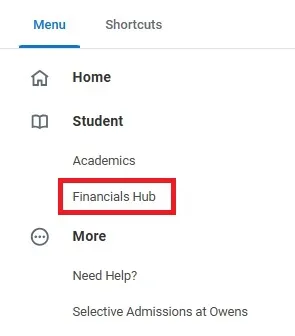
- Select Financials Hub from the home page or choose Financials Hub from the menu in the upper left corner.
- In the Suggested Links section, click on Financial Aid Resources.
- Click on the Submit Financial Aid Documents link and follow the instructions.
Fax
(567) 661‐7808
In Person
Student Financial Services
Owens Community College
30335 Oregon Rd.
Perrysburg, OH 43551
Viewing Financial Aid Information for 2025-2026 (Summer 2025, Fall 2025, Spring 2026)
The Office of Financial Aid communicates most information to you on your Workday account or Owens email. Check your Workday account for the information required to process your awarded financial aid.
View Your Email
- Log in to Ozone.
- Click on Student Email.
Review Action Items
In order to process your financial aid, certain documents must be submitted. Please submit the items that are listed as Action Items. Additional processing may be required. For example, verification documents, such as tax returns, must be reviewed, and corrections must be processed by the U.S. Department of Education. Most Action Items cannot be submitted after your last day of attendance for the semester.
- Log in to Workday.
- Your Action Items will be displayed on your Workday home page in the Awaiting Your Action section. You can also click the My Tasks icon in the top right corner of the home page.

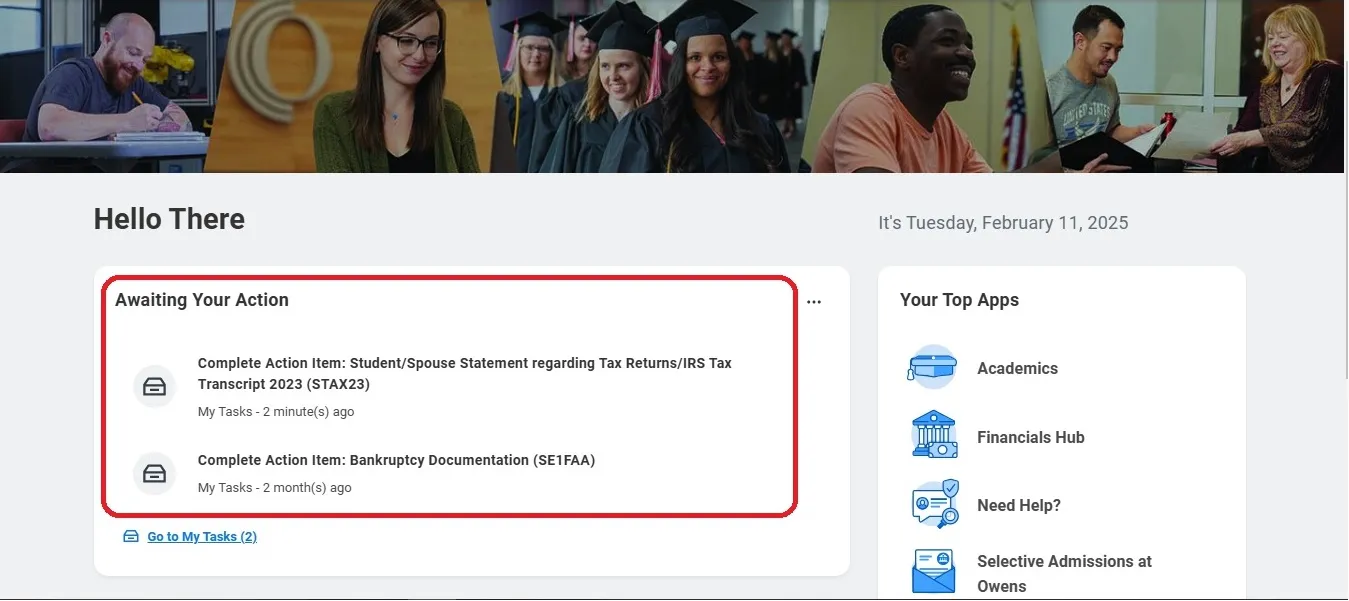
- Select an item to view the details.
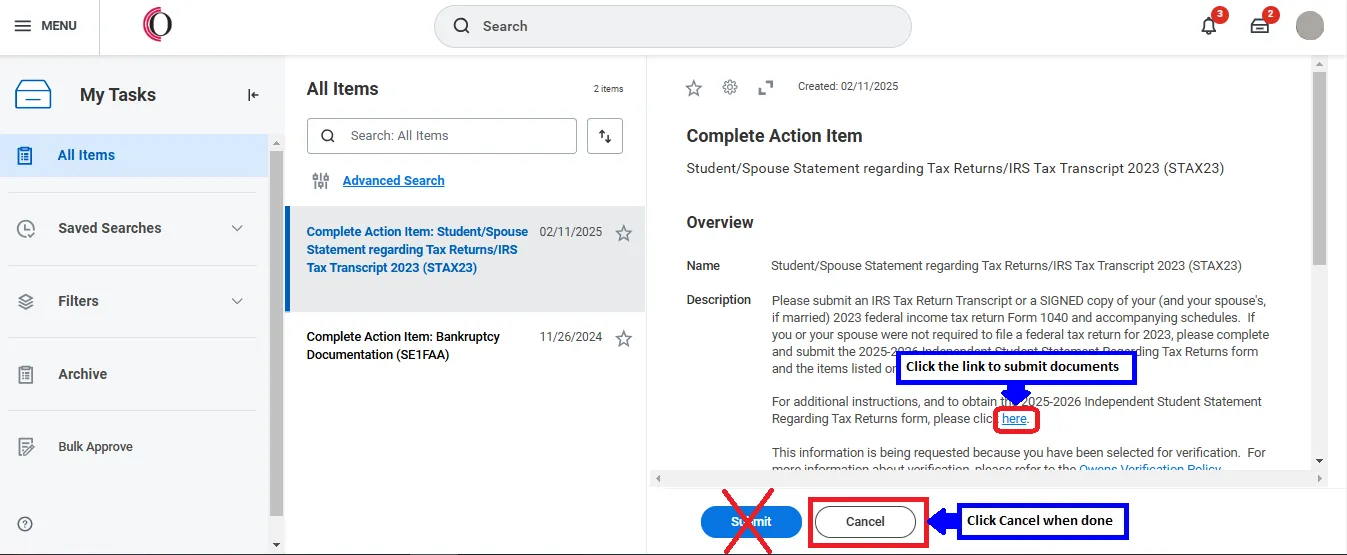
- The action items will be listed on the left. Select an item to view the details and instructions.
- To upload required documents, click on the link in the instructions. This will open a new tab. Follow the instructions to upload your documents.
- Once you have completed the item’s instructions and uploaded any required documents, click Cancel. Leave the Enter Your Comment section blank.
- Please allow two to three business days for the Action Item to be removed from the My Tasks page.

Review Documents
- Go to the Workday home page, then left-click on your photo in the upper right of the page and select View Profile.
- On the left, below your name, click Actions, select Additional Data and View All.
Access Financial Aid Information in Workday
- Log in to Workday.
- Select Financials Hub from the home page or choose Financials Hub from the menu in the upper left corner.
- Click on View Financial Aid.
- Select the Award Year.
- Click OK.
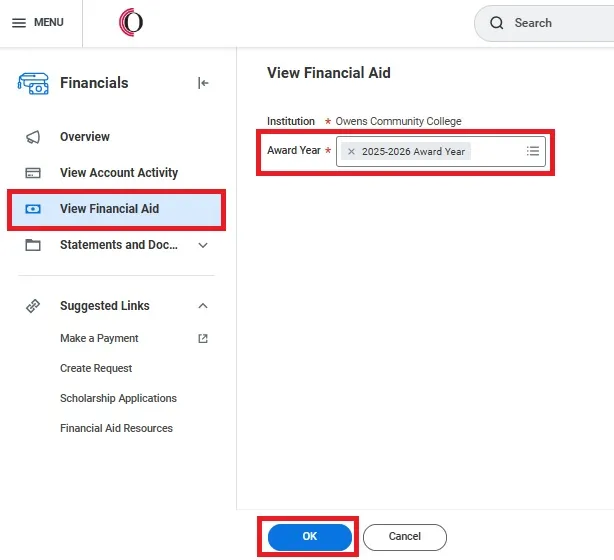
Note: You can also type view financial aid in the Search field and select View Financial Aid.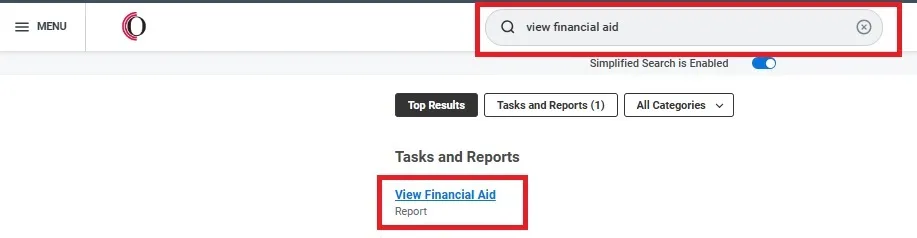
- This section will display award amounts, your award letter and the College Financing Plan. Please see additional instructions below.
- From the Financials Hub, in the Suggested Links section, click on Financial Aid Resources.
This provides additional financial aid information, including the following:
- Submit Financial Aid Documents. Click on this link to upload documents for financial aid.
- Satisfactory Academic Progress (SAP) Appeal Form. Click on the SAP Appeal Form link to complete an application to appeal your Satisfactory Academic Progress status.
Review Your Financial Aid
- Log in to Workday.
- Select Financials Hub from the home page or choose Financials Hub from the menu in the upper left corner.
- Click on View Financial Aid.
- Select the Award Year.
- Click OK.
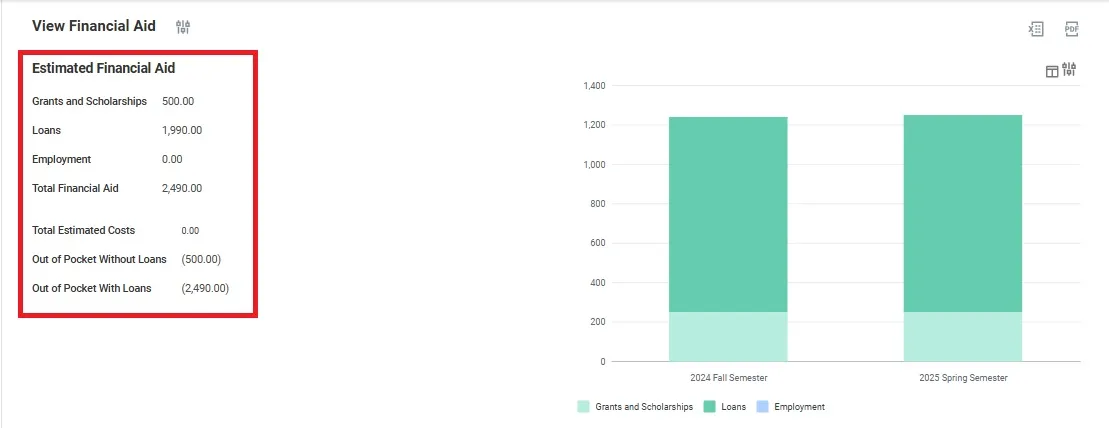
- The top section displays a summary of your Estimated Financial Aid.
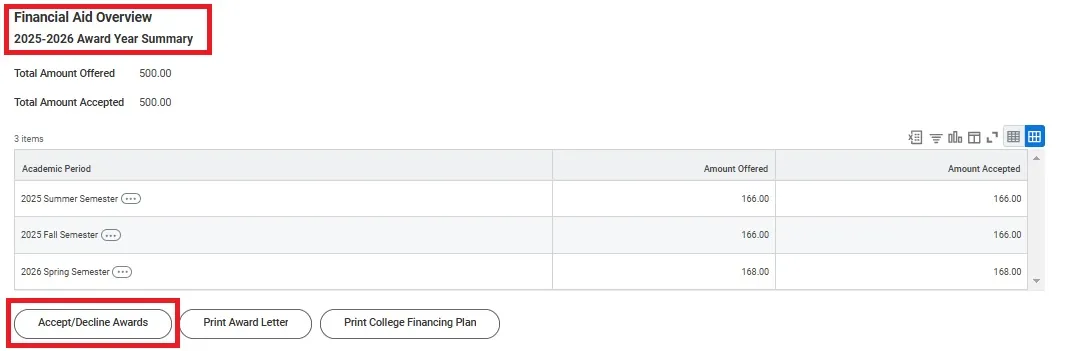
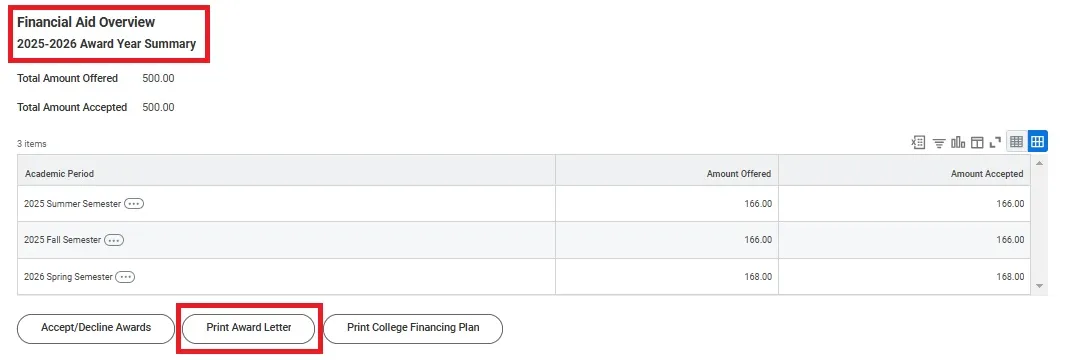
- Scroll down to the Financial Aid Overview section to view your Award Year Summary.
- Until the semester freeze date, the amounts are generally based on full-time enrollment of 12 or more credit hours.
- Federal Pell Grant amounts are adjusted based on enrollment. Please use the Print Award Letter option for details. There is a lifetime limit of 12 full-time semesters (or its equivalent) for the Federal Pell Grant. Your FAFSA Submission Summary will indicate if you are close to this limit.
- More information about each financial aid program is available on the Grants, Scholarships, Federal Work-Study and Loans.
- Email the work-study coordinator if you are interested in a Federal Work-Study job.
- If there are awards that have not been accepted, click Accept /Decline Awards. Enter your decision and click OK.
Before you decide:- It is highly recommended that you accept the same amount for all semesters you plan to attend at least half-time. For example, if you are attending all year and would like $3,000, accept $1,000 for each semester (summer, fall and spring). If you choose to accept different amounts for each semester, your loans will be processed as single-semester loans, which will be issued in two disbursements per semester and may result in a change in the amount and type of Direct Loan for which you are eligible.
- Federal regulations do not allow you to borrow Federal Direct Unsubsidized Loans if you decline or accept a partial amount of any Federal Direct Subsidized Loan that is offered to you.
- Before accepting a Federal Direct Loan, it is highly recommended that you clearly understand the loan program and establish a plan to repay the loan. The Federal Student Aid website includes required Entrance Counseling, which explains the Federal Direct Loan program and your rights and responsibilities as a borrower. The website also offers Financial Awareness Counseling to help you plan your finances.
- Students may qualify for the Federal Direct Subsidized Loan, the Federal Direct Unsubsidized Loan or both. The Federal Direct Subsidized Loan does not accrue interest while you are in school at least half-time, during the grace period, or in a deferment period. The Federal Direct Unsubsidized Loan accrues interest at all times, including while you are in school. Interest rates may differ between the two loan types. Current interest rates are available on the Owens Education Loans page.
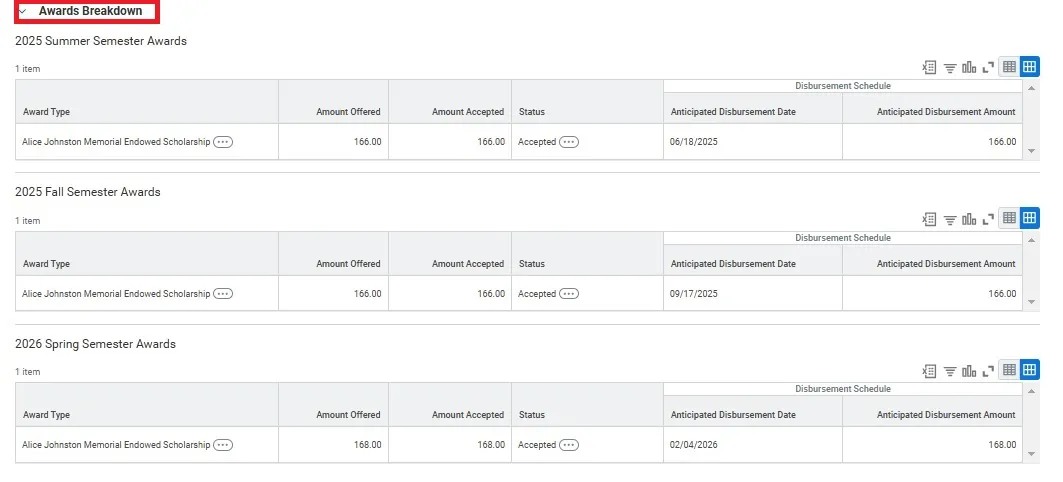
- Click on Awards Breakdown to view detailed information for each semester in the award year.
- The dates on which your financial aid is expected to pay toward your account will be listed. Before any actual payments are made, Action Items must be completed, and your eligibility, including class attendance, must be confirmed. Aid for classes that begin later in the semester will disburse once the class begins and attendance is verified.
- Students who have financial aid remaining after tuition, fees and book voucher purchases are paid will receive a credit balance refund based on the refund preference they have selected. Students whose aid is not ready for initial disbursement will receive their refund at a later date. This includes freshmen receiving Federal Direct Loans for the first time and students with an incomplete or unprocessed file. If attendance has not been verified by all of your instructors, a refund may not be available.
Print Your Financial Aid Award Letter
- On the View Financial Aid page, scroll to the Financial Aid Overview section and click the Print Award Letter button.
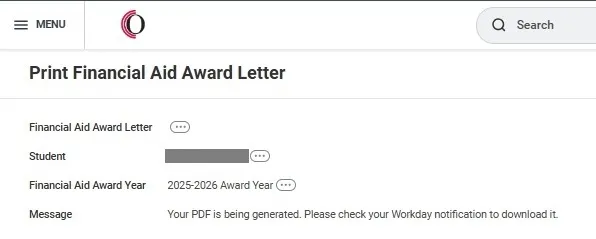
- The following screen will display. Click Done.
- Click the Notifications icon at the top right of the page. The Financial Aid Award Letter will be listed for you to view or download.
 The Financial Aid Award Letter will be listed for you to view or download.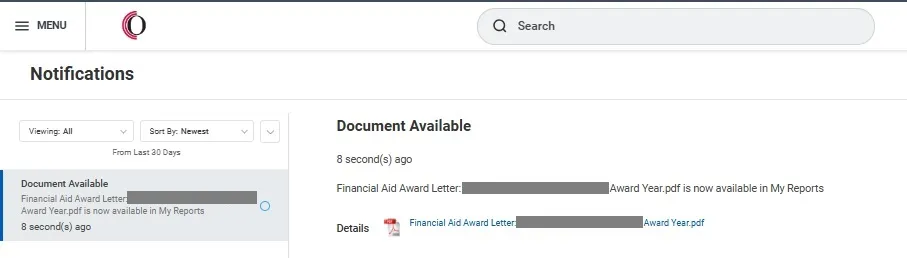
College Financing Plan
The College Financing Plan summarizes your financial aid so that you may compare financial aid awards among various colleges and universities.
- Select Financials Hub from the home page or choose Financials Hub from the menu in the upper left corner.
- Click View Financial Aid.
- On the View Financial Aid page, scroll to the Financial Aid Overview section and click the Print College Financing Plan button.
- Click Done.
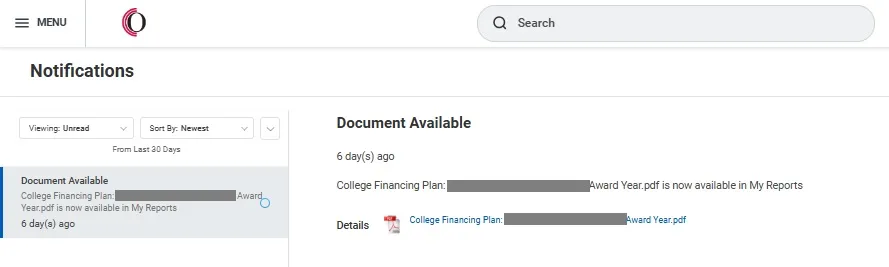
- Click on the Notifications icon at the top right of the page.
- When the report is ready, a link to the PDF will appear. Click on the link to view it.
Financial Cost and Aid Disclosure Form
- Select Financials Hub from the home page or choose Financials Hub from the MENU in the upper left corner.
- In the Suggested Links section, click on Financial Aid Resources.
- In the Financial Cost and Aid Disclosure Form section, click the Request 2026-2027 Financial Cost and Aid Disclosure Form
- When prompted for the Request Type, type Financial Cost and Aid Disclosure Form or select it from the All and click OK.
- Leave the enter your comment box blank and click Submit.
- Go to My Tasks in the upper right corner. A link to the Financial Cost and Aid Disclosure Form will display once the information is ready. Note: The form will no longer be viewable if you click the Submit button.
View Your Account Balance
- Select Financials Hub from the home page or choose Financials Hub from the menu in the upper left corner.
- Your account balance is displayed. Important notice about anticipated financial aid payments: Anticipated aid is an estimate of financial aid that assumes you meet all eligibility requirements. Amounts are based on full-time enrollment until the financial aid freeze date has passed. All information is subject to change.
- Click on View Account Activity for details.
- Any eligible aid will be posted to your account once attendance has been verified. If you have aid remaining after your fees and authorized charges, such as bookstore purchases, are paid, a refund will be processed according to the refund preference you selected.
View Notes
Review Notes for messages about financial aid.
- On the Workday home page, click on your photo in the upper right of the page and select View Profile.
- Click on History.
- Select Note History.
Scholarships
Obtain information about scholarships and apply from the Scholarship Applications page.
- Log in to Workday.
- Select Financials Hub from the home page or choose Financials Hub from the menu in the upper left corner.
- In the Suggested Links section, click on Scholarship Applications.
Enrollment and Attendance
- While it is recommended that you apply early for financial aid, you can enroll in and attend classes while your financial aid is being processed. However, if you are not eligible for aid, you will be responsible for paying your tuition.
- Your aid is based on your enrollment as of the freeze date, as long as the completed results from your FAFSA® are on file by that date. You should enroll in all classes by this date, including those that start later in the semester. View the published freeze dates.
- If you drop all of your classes, stop attending, or do not complete all modules for which you have registered, you could be responsible for repaying a portion of the financial aid you received based on the Return of Title IV Funds policy.
Questions
For assistance with financial aid, please contact the Student Service Center at (567) 661-2387, email your Student Financial Services Advisor or email Student Financial Services.
To find your Student Financial Services Advisor:
- On the Workday homepage, select Academics. If it is not listed on the home page, select Academics from the menu in the upper left corner.
- The Important Contacts Support Network section will show your Student Financial Services Advisor.
For assistance with Workday, please contact the Help Desk at (567) 661-7120.
Privacy
Due to privacy regulations, we can only share your account information with the following individuals:
- You (the student)
- In some cases, your parents
- Certain school officials and agencies
You can set up proxy access to allow us to share information with another individual, such as your parent, spouse or others.
- On the Workday home page, left-click on your photo in the upper right of the page and select View Profile.
- Click on Contact.
- Select Friends and Family.
- Add a contact and check Is Third Party User.
- Once the contact displays on the Friends and Family page, click Actions, then Manage Permissions for My Third Party and follow the instructions.
The Student Service Center does not disclose certain information by phone. Please bring your picture ID when visiting the office.
Additional Information
Visit Student Financial Services for details about financial aid programs, eligibility requirements, important policies and application procedures.
FAFSA® is a registered trademark of the U.S. Department of Education.
Information for 2026-2027 is not yet available.